> For the complete documentation index, see [llms.txt](https://docs.finopscenter.com/llms.txt). Markdown versions of documentation pages are available by appending `.md` to page URLs; this page is available as [Markdown](https://docs.finopscenter.com/amazonq/marketplace-installation-ami-configuation.md).
# Marketplace Installation - AMI Configuation
## AMI Configuration and Stack Launch
#### Learn how to configure and launch custom AMIs efficiently in your application stack for enhanced performance and scalability.
Navigate to the AWS Marketplace and Search for FinOps Center (FinOps-in-a-Box or Enterprise Versions)
Click to Zoom
ATTENTION: FinOps Center will be deployed from CloudFormation via S3. The below instruction will create an EC2 deployment via and AMI. Upon creation, the EC2 instance will create the bucket with the CloudFormation Scripts and JSON to be used in lunch in CloudFormation. Upon completion (when the bucket and packages are deployed) the instance that is created can be shut down. During the installation, a EC2 Role needs to be created with IAM Scope defined below to enable the creation and copying of files for the CloudFormation Installation.
**Continue to Subscribe**
Click to Zoom
**Accept Terms**
Click to Zoom
**Select Continue to Launch**
Click to Zoom
**Launch through EC2**
Click to Zoom
Click to Zoom
Configure Instance to your companies standards. As note previously, the EC2 instanced provisioned is used to copy files to S3 for the FinOps Center deployment. We recommend a small instance (T3 Small) be used and can be shut down once the files are copied to S3.
Click to Zoom
**Prior to Launch → the IAM Instance Profile much have a Role with Policy to S3 Create Bucket and S3 Write Access for FinOps Center Installation Bucket. Add your AWS Account Number to below Policies.**
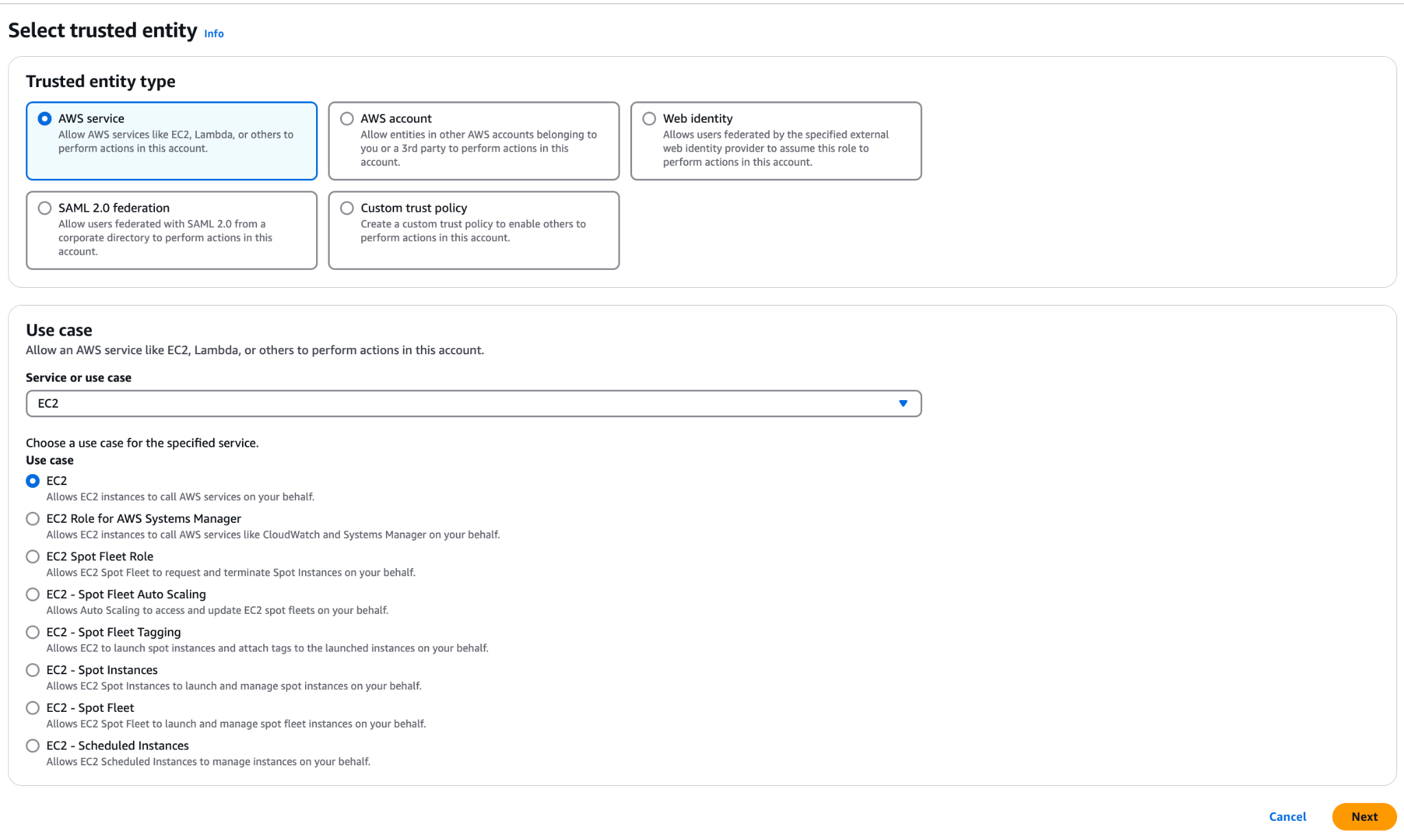
Navigate to IAM and follow below Steps
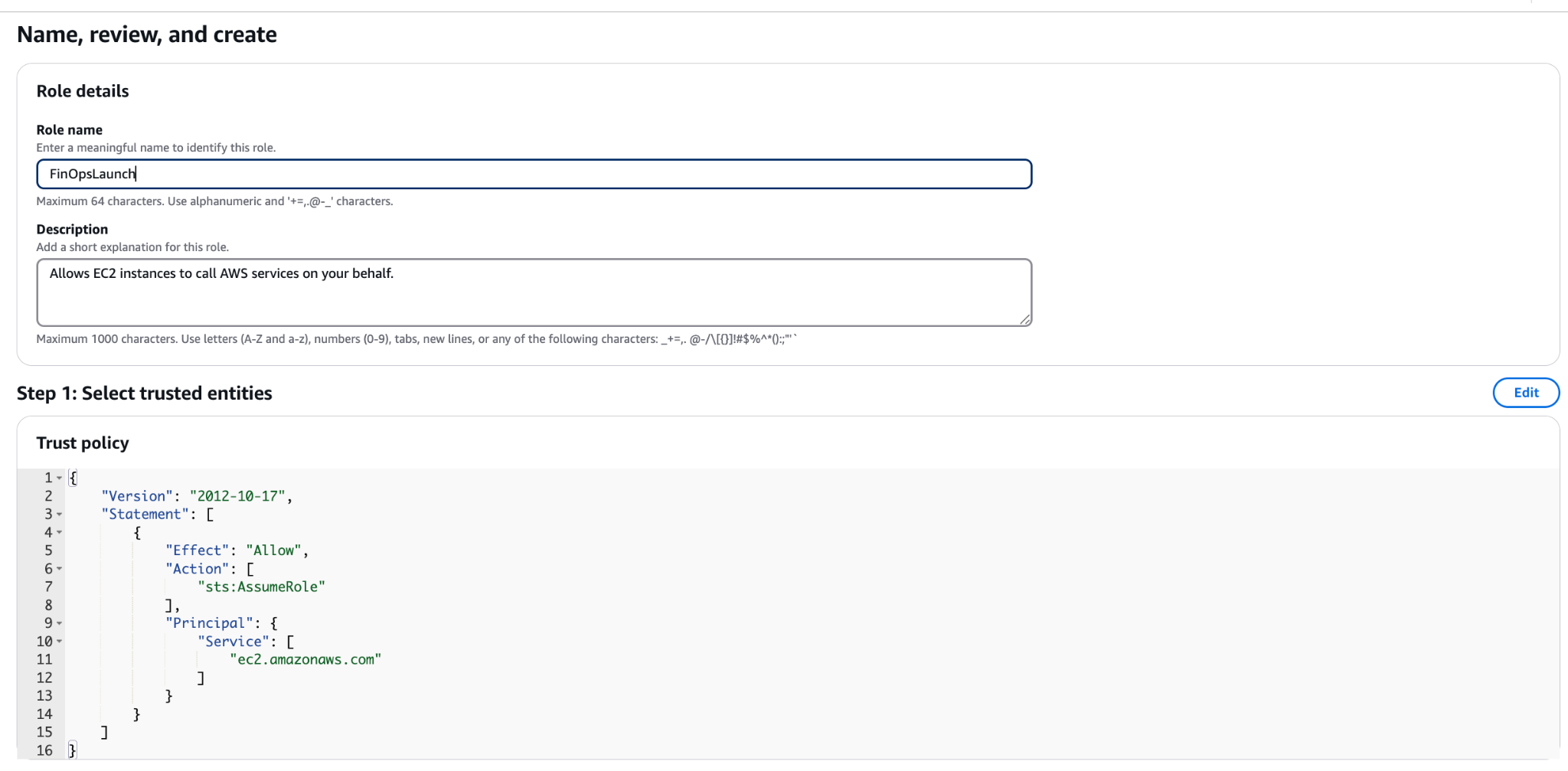
Step 1: Create a New Role for EC2 or Validate an Existing Role has above Policy.
Click to Zoom
JSON Policy - add account number of installed account.
```json
{
"Version": "2012-10-17",
"Statement": [
{
"Effect": "Allow",
"Action": [
"s3:CreateBucket",
"s3:ListBucket"
],
"Resource": [
"arn:aws:s3:::cdk-hnb659fds-assets--us-east-1"
]
},
{
"Effect": "Allow",
"Action": [
"s3:PutObject",
"s3:PutObjectAcl"
],
"Resource": [
"arn:aws:s3:::cdk-hnb659fds-assets--us-east-1*"
]
}
]
}
```
```json
```
Step 2: Create a Role
Click to Zoom
Step 3: Add Policy to Role
Click to Zoom
and Create Role
Click to Zoom
Return to EC2 to Launch Instance
**No Key is Required as the Instance can be delete upon Install**
**Launch Instance**
Navigate to S3
As the EC2 starts up, a bucket will appear beginning with cdk (see below)
| [cdk-](https://s3.console.aws.amazon.com/s3/buckets/cdk-hnb659fds-assets-525170417841-us-east-1?region=us-east-1)xxxxxx[-assets-](https://s3.console.aws.amazon.com/s3/buckets/cdk-hnb659fds-assets-525170417841-us-east-1?region=us-east-1)accountnumber[-us-east-1](https://s3.console.aws.amazon.com/s3/buckets/cdk-hnb659fds-assets-525170417841-us-east-1?region=us-east-1) | US East (N. Virginia) us-east-1 |
Bucket and objects not public
| Timestamp |
| -------------------------------------------------------------------------------------------------------------------------------------------------------------------------------------------------------------------------------------------------------------------------------------------------------------------------------------------------------------------------------- | ------------------------------- | -------------------------------------------- | --------- |
Once you see the cdk Bucket is created navigate back to the Marketplace Listing to Launch CloudFormation.
Launch CloudFormation
Click Next
Note: All environment installation are “ Fresh Installs”. There is no separate installation pipeline between SDLC environment.
---
# Agent Instructions
This documentation is published with GitBook. GitBook is the documentation platform designed so that both humans and AI agents can read, navigate, and reason over technical content effectively. Learn more at gitbook.com.
## Querying This Documentation
If you need additional information that is not directly available in this page, you can query the documentation by asking a question.
Perform an HTTP GET request on the following URL with the `ask` and `goal` query parameters:
```
GET https://docs.finopscenter.com/amazonq/marketplace-installation-ami-configuation.md?ask=&goal=
```
`ask` is the immediate question: it should be specific, self-contained, and written in natural language.
`goal` is what the user is ultimately trying to achieve, the reason they need the answer. Sharing it helps GitBook give you a better, more relevant answer. A goal is most helpful when it describes the outcome the user wants rather than restating the question. For example, with `ask=how do I create an API token`, a goal like `automate deployments from our CI pipeline` lets GitBook tailor the answer to that use case.
The response will contain a direct answer to the question and relevant excerpts and sources from the documentation.
Use this mechanism when the answer is not explicitly present in the current page, you need clarification or additional context, or you want to retrieve related documentation sections.