# AMI Configuration

**Launch through EC2**

<figure><img src="https://static.helpjuice.com/helpjuice_production/uploads/upload/image/22503/direct/1731948989407/image.png" alt=""><figcaption></figcaption></figure>

Click to Zoom

<figure><img src="https://static.helpjuice.com/helpjuice_production/uploads/upload/image/22503/direct/1731949035596/image.png" alt=""><figcaption></figcaption></figure>

Click to Zoom

&#x20;

&#x20;

Configure Instance to your companies standards. As note previously, the EC2 instanced provisioned is used to copy files to S3 for the FinOps Center deployment. We recommend a small instance (T3 Small) be used and can be shut down once the files are copied to S3.

<figure><img src="https://static.helpjuice.com/helpjuice_production/uploads/upload/image/22503/direct/1731949207007/image.png" alt=""><figcaption></figcaption></figure>

Click to Zoom

&#x20;

**Prior to Launch → the IAM Instance Profile much have a Role with Policy to S3 Create Bucket and S3 Write Access for FinOps Center Installation Bucket. Add your AWS Account Number to below Policies.**

<figure><img src="https://static.helpjuice.com/helpjuice_production/uploads/upload/image/22503/direct/1731949270162/image.png" alt=""><figcaption></figcaption></figure>

&#x20;

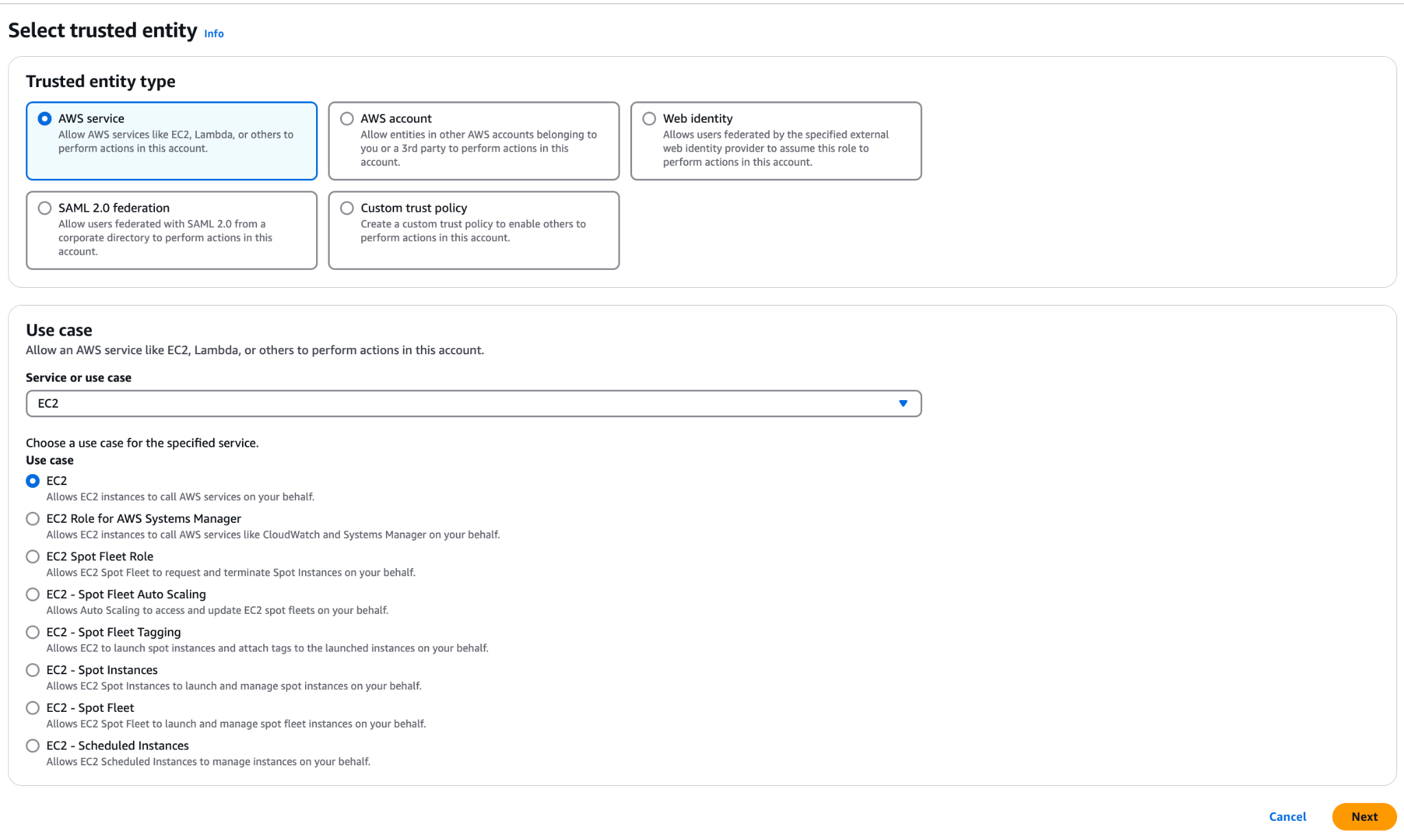
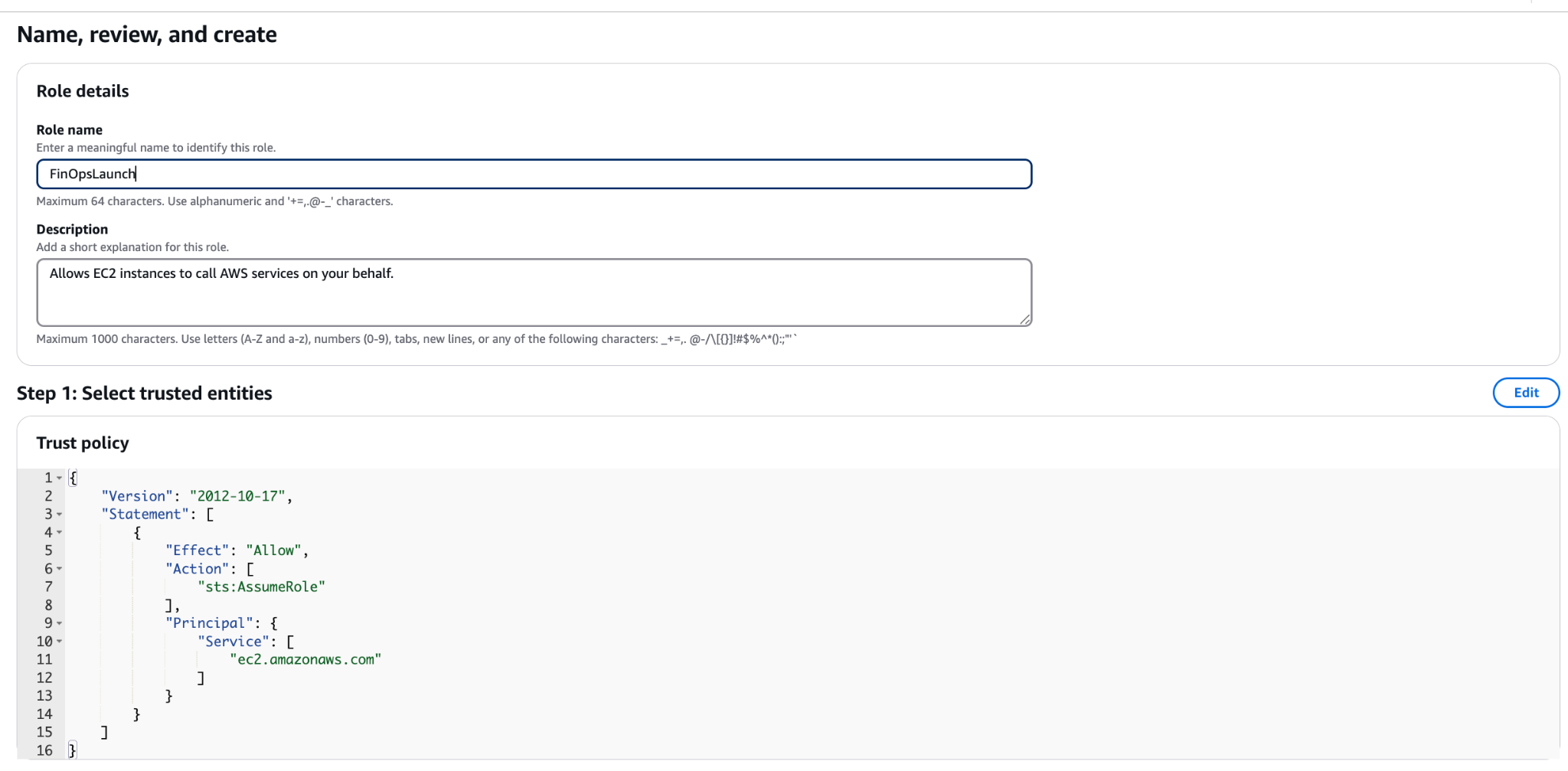
Navigate to IAM and follow below Steps

Step 1: Create a New Role for EC2 or Validate an Existing Role has above Policy.

&#x20;

<figure><img src="https://static.helpjuice.com/helpjuice_production/uploads/upload/image/22503/direct/1731951106219/image.png" alt=""><figcaption></figcaption></figure>

Click to Zoom

JSON Policy - add account number of installed account.&#x20;

```json
{
  "Version": "2012-10-17",
  "Statement": [
    {
      "Effect": "Allow",
      "Action": [
        "s3:CreateBucket",
        "s3:ListBucket"
      ],
      "Resource": [
        "arn:aws:s3:::cdk-hnb659fds-assets-<accountnumber>-us-east-1"
      ]
    },
    {
      "Effect": "Allow",
      "Action": [
        "s3:PutObject",
        "s3:PutObjectAcl"
      ],
      "Resource": [
        "arn:aws:s3:::cdk-hnb659fds-assets-<accountnumber>-us-east-1*"
      ]
    }
  ]
}
```

&#x20;

```json
 
```

Step 2: Create a Role

<figure><img src="https://lh7-rt.googleusercontent.com/slidesz/AGV_vUfOn9NttKnNYCNuWwnL_bt-ekz9iFqFpI3f3OaC0iTCJsnf05E4U-l7J8Kh4WMy6SIcUuDEoMuERRRDzlruXpELw6eqghWtuEBXPSRBSnE0TSpisvH9NMdk0upJn4XPPBRzXuru4g=s2048?key=XAswGjSjmuGvK4aJmaEUuTM5" alt="" height="508" width="849"><figcaption></figcaption></figure>

Click to Zoom

Step 3: Add Policy to Role

<figure><img src="https://static.helpjuice.com/helpjuice_production/uploads/upload/image/22503/direct/1731951396208/image.png" alt=""><figcaption></figcaption></figure>

Click to Zoom

and Create Role

<figure><img src="https://lh7-rt.googleusercontent.com/slidesz/AGV_vUfIFWR3Pwy119jYmtNyO5RNz2sFEZ-ijc_sAkjoRnTuiTI2wbzWNlHLkm7lgnjLa7-czIHBCZ-Z1eYcp4CtxR8BctdGbxjr3Ip16-Ri01i_sLEdsbu427juyQMOD3y8yt4x6qSl=s2048?key=XAswGjSjmuGvK4aJmaEUuTM5" alt="" height="456" width="928"><figcaption></figcaption></figure>

Click to Zoom

&#x20;

Return to EC2 to Launch Instance

**No Key is Required as the Instance can be delete upon Install**

**Launch Instance**

Navigate to S3

As the EC2 starts up, a bucket will appear beginning with cdk (see below)

| [cdk-](https://s3.console.aws.amazon.com/s3/buckets/cdk-hnb659fds-assets-525170417841-us-east-1?region=us-east-1)xxxxxx[-assets-](https://s3.console.aws.amazon.com/s3/buckets/cdk-hnb659fds-assets-525170417841-us-east-1?region=us-east-1)accountnumber[-us-east-1](https://s3.console.aws.amazon.com/s3/buckets/cdk-hnb659fds-assets-525170417841-us-east-1?region=us-east-1) | US East (N. Virginia) us-east-1 | <p>Bucket and objects not public</p><p> </p> | Timestamp |
| -------------------------------------------------------------------------------------------------------------------------------------------------------------------------------------------------------------------------------------------------------------------------------------------------------------------------------------------------------------------------------- | ------------------------------- | -------------------------------------------- | --------- |

&#x20;

Once you see the cdk Bucket is created navigate back to the Marketplace Listing to Launch CloudFormation.

Launch CloudFormation

&#x20;

Click Next

&#x20;

Note: All environment installation are “ Fresh Installs”.  There is no separate installation pipeline between SDLC environment.&#x20;
